
AI features
AI features for supporters — how to verify and turn them on, where each AI button is and what it does, and what to do about the messages you may see
Tea has a set of built-in AI features: it writes game descriptions, looks up official Chinese and English names, recognizes which version a ROM is, finds labels and covers in one tap, and translates and finds cheats. They are for the author's supporters: verify once to turn them on, with no token limits.
They work on both Android and the Steam Deck edition, and you verify the same way on both.
#Who can use them
Any one of these is enough:
| Way | Requirement |
|---|---|
| bilibili 充电 | On B站 (bilibili), subscribe to the author's 充电月包 (bilibili's monthly "charge" membership) |
| 爱发电 (afdian) | Sponsor the author on 爱发电 with a plan of ¥10 or more |
- bilibili: https://space.bilibili.com/1589921167
- afdian: https://afdian.com/a/analogue
The Settings → AI page also shows both sponsor QR codes, so you can scan them straight from your phone. Thank you to every supporter — see Thanks.
#Verifying
Open Settings → AI. This page lists every AI feature, with the two verify buttons below.
#Verify bilibili 充电
- Tap Verify bilibili 充电. A bilibili login QR code appears on screen.
- Scan it with the bilibili app on your phone. When you see "Scanned: confirm on your phone", confirm the login on your phone.
- Wait for "Checking your 充电…" to finish. When you see "Verified. Thank you for your support!", you're all set.
The login is only used to check your 充电 status and is signed out right after. Tea doesn't keep your bilibili login.
Tip While the QR code is showing, the two sponsor QR codes on the page are hidden so you don't scan the wrong one. If the QR code expires, tap Retry to get a new one.
#Verify afdian
- Tap Verify afdian and enter either of these in the "Activation code or order number" box:
- Activation code: 8 characters, sent to you by the author as an afdian private message (open the messages in the afdian app; new sponsors get it automatically after paying).
- Order number: 28 digits, from any order you placed to sponsor the author. You can copy it on afdian's Orders page.
- Tap Verify. When you see "Verified. Thank you for your support!", you're all set.
Tea remembers what you entered, so next month it's already filled in — just tap once.
Tip If the button says "Verify afdian (soon)", you're usually just offline for a moment. Once the network is back the button changes back by itself; no need to restart Tea.
#After verifying
- Once verified, the page shows "Verified · source · until date".
- Verification follows your support: when your support runs out (at most about a month), verify again. After it expires, tapping an AI button shows "Your supporter check has expired; verify again in Settings → AI" — just verify again.
- Up to 3 devices per supporter. Verifying on a 4th device replaces the one verified earliest, which then has to verify again to keep using AI.
- After reinstalling Tea or clearing its app data, the device counts as a new one and needs to verify again.
- Don't want to use it on this device any more? Tap Sign out: this device's slot frees up right away, and the remembered activation code or order number is cleared too.
#Before you verify
All AI buttons are still in their usual places, just semi-transparent. Tapping one shows Activate it on the [Settings] / [AI] page and doesn't send any request.
#Where each AI feature is
| Feature | Where | What it does |
|---|---|---|
| Look it up | The About card on a game's page; the library's preview panel; Edit game info → Description | Writes a game description |
| Chinese / English / Both | Edit game info → Name | Looks up the official name and fills it in |
| Ask AI | Edit game info → Edition | Recognizes which version your ROM is |
| Find art | Label / cover → below Scrape name | Looks up the English name and searches images right away |
| Translate / Find cheats | Cheats window | Translates cheat names, helps find cheats when none turn up |
| ✦ Generate | Choose an emulator → + Custom launch (Android only) | Writes the launch command for you |
#Look it up
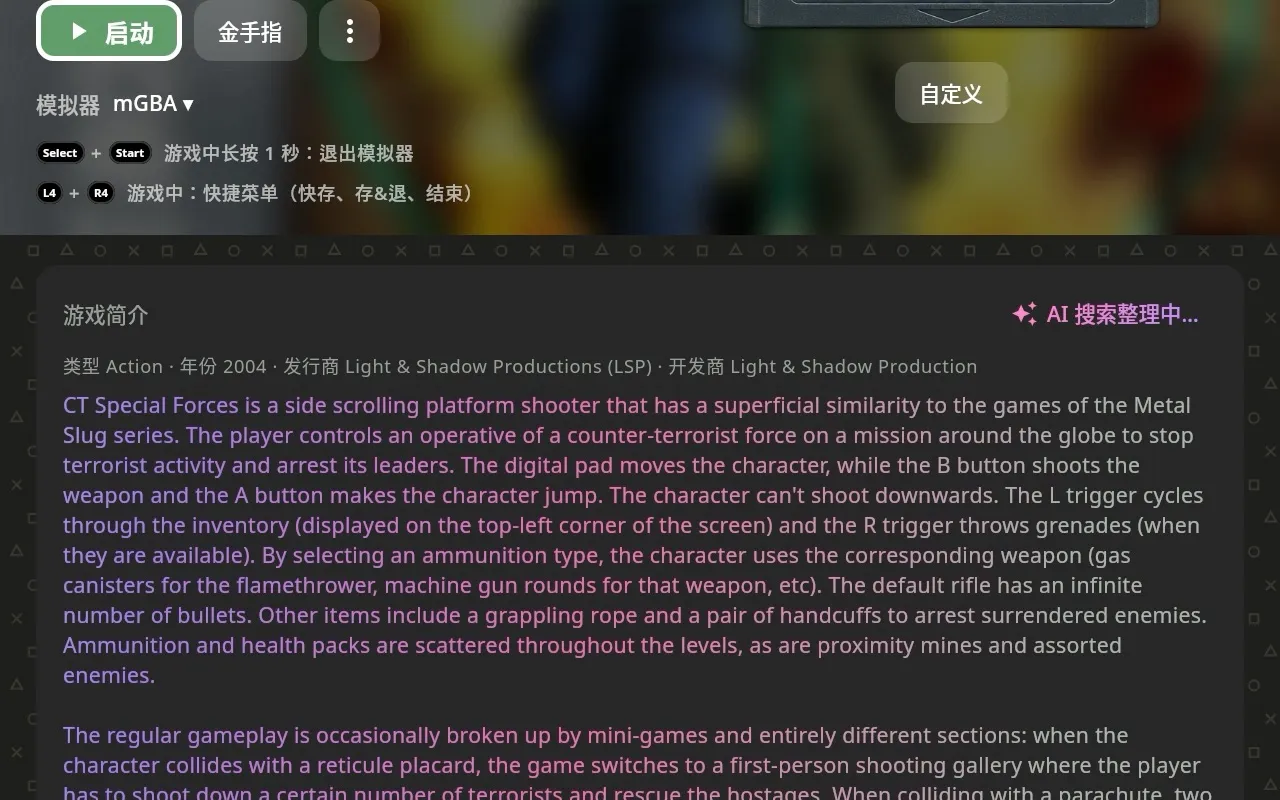
On a game's page, tap Look it up on the About card. The AI combines the scraped info with a web search and writes up to three paragraphs: History:, Gameplay: and Fun facts:. When the app is in English, it writes in English.
- While it's writing, the heading shows "AI is writing…". The first lookup for a game can take from a dozen seconds to over a minute; games someone else has already looked up appear almost instantly.
- The result is saved on the device and shown straight away next time. Show original / Show AI version on the card switches between the scraped description and the AI one.
- It also works for games with no description (the card says "No description found for this game").
- When the library's Game preview panel is open, the button is there too.
#Edit game info
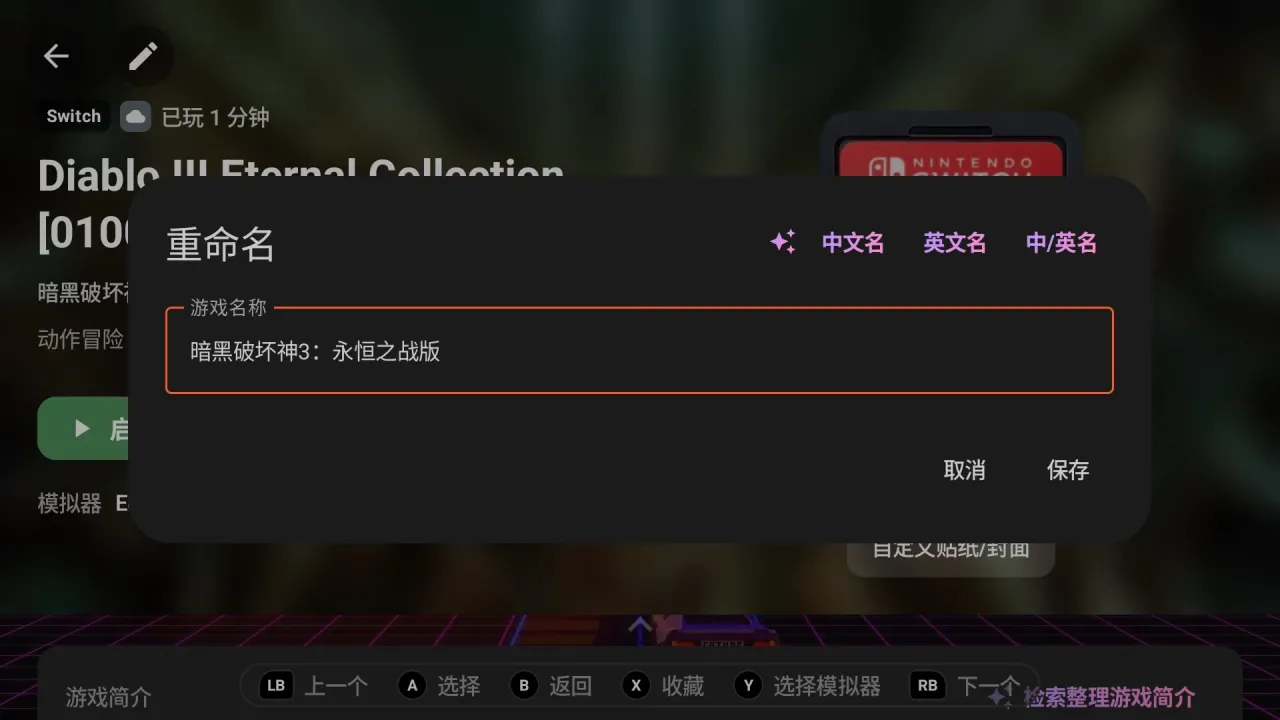
On a game's page, tap ✎ in the top-left corner, next to Back, to open Edit game info (Edit on the description card opens the Description page directly). Switch between the three pages with LB / RB; each page's AI button is in its top-right corner:
- Name: Chinese, English, Both — one tap fills in the official name.
- Edition: Ask AI works out which fan translation, region and version this ROM is (e.g. "Traditional Chinese translation v0.99.2 · group name", "US") from the file name, the scraped info and the game ID on the cartridge or disc. It can tell the region from the game ID even when the file name doesn't say.
- Description: Look it up fills the description box, and you can edit it further.
You can edit whatever the AI fills in, then tap Save to save it all; Cancel throws it all away. While a box holds exactly what the AI just gave, its AI button is hidden; it comes back once you change the text.
#Find art
On a game's page, open Label / cover; Find art is below Scrape name. The AI looks up the game's official English release name, picks one the image database can actually find, puts it in Scrape name and searches right away. Pick an image from the results and you're done. Handy for Chinese names, fan translations and renamed games.
#Cheats: Translate and Find cheats
On a game's page, tap Cheats to open the cheats window:
- Translate: translates English cheat names into Chinese. Switch with Show original / Show translation; filtering finds both. It only changes what's displayed, not the cheats themselves.
- Find cheats: when no cheats turn up for the game's name (say, a renamed fan translation), tap it and the AI works out which English names the game might go by, then searches the cheat database again. If it finds more than one set, they're listed and you can switch between them.
How to turn on cheats in each emulator: see Cheats.
#✦ Generate (Custom launch, Android only)
At the bottom of the emulator list, tap + Custom launch, pick an app, then tap ✦ Generate in the launch command editor and the AI writes the command for you. Then tap Try, and when you come back answer "Did the game start?": if it did, save it; if not, tap Generate again for another way. You get up to 3 tries per editor; if it still doesn't work, choose Open app only. See Playing games.
#Common messages
| Message | What to do |
|---|---|
| Activate it on the [Settings] / [AI] page | You haven't verified yet; follow the steps above |
| Your supporter check has expired; verify again in Settings → AI | Your support ran out or a 4th device took this one's place; verify again |
| No active support found for this account (bilibili 充电 or afdian); verify again once you support | Check that your 充电 or sponsorship is still active and that you logged in with the same account |
| No such activation code / order number; check it and enter it again | Check the length and characters and enter it again; it's best to copy the order number straight from afdian's Orders page |
| Verification timed out; try again in a moment | The network was too slow while verifying; try again later |
| The AI took too long; try again in a moment | The AI didn't answer in time this once; tap again later. The first lookup for a new game is the slowest |
| The connection dropped; check your network and try again | The network dropped midway; check it and try again |
| Can't reach the AI service; check your connection (or try another network) | Try a different network (a phone hotspot, for example) |
| The server is busy; try again in 10 minutes | Too many requests in a short time; wait a while before using it again |