Library
Tabs, layouts, controller buttons, search and bookmarks, the game page, collections, ROM folders and the library's look.
The library is Tea's main screen. Tea scans the ROM folders on your device, sorts the games it finds into one tab per console, and adds box art, labels and descriptions. Tea itself offers no game downloads; to download files from your own cloud drive, see Cloud drive.
#ROM folders
#First-run setup
The first time you open Tea, the setup wizard asks you to choose a language, grant all-files access, and then choose a ROM folder:
- Choose one main ROM folder (for example
Roms). - If it already has ES-DE-style console subfolders (
psx,snes,gba…), Tea recognizes them and uses them as each console's folder; folders for the other consoles are created automatically using ES-DE's names. - Tap Finish and scan, and the library starts scanning and fetching box art.
You can skip this step and choose later in Settings.
#Changing them in Settings
- Settings → Emulator games → Default ROM folder: consoles without a folder of their own keep their games in "Default ROM folder/console name".
- Settings → Emulator games → ROM folder per console: give a console its own folder, or tap Reset.
Tip After switching SD cards, or copying the Freedeck folder to a new device, Tea finds the folders again by itself as long as they sit at the same path on the new card, with nothing to set up again.
#Custom tabs
To keep hacks, translation collections and the like in a tab of their own:
- Open Settings → Emulator games → ROM folder per console and tap Add custom tab.
- Fill in the Tab name (for example "GBA hacks"), choose the Console and the Folder (it can't be that console's own ROM folder), and tap Save.
A custom tab sits right after its console's tab; its games get box art, launch and track play time as usual. Edit / Delete on its card change it at any time. When you choose an emulator for a game in this tab, "Apply to all" becomes Apply to this tab and affects only this tab.
#How games are recognized
- Tea rescans the ROM folders each time it comes back to the foreground, so newly added games show up by themselves. Pulling down at the top of the list rescans too.
- Games Tea recognizes show their Chinese name and details; games it doesn't recognize use the file name as their name, and still launch and get scraped.
- Updates, patches, DLC (Switch, PS Vita), BIOS files, a
.cue's audio track files and the later parts of split archives are not listed as games. - Multi-disc games: discs such as
CD1/CD2orDisc 1/Disc 2, and discs listed in an.m3u, are merged into one game. You pick the disc at launch; see Playing games. - Simplified and Traditional Chinese translations of the same game (file names marked
(简)/(繁)and so on) are recognized separately; deleting one doesn't affect the other.
#Use local game names
With Settings → Emulator games → Use local game names on, emulator games on your device show their local name first: the name in a Pegasus or ES-DE game list (gamelist.xml), then an arcade game's Chinese name, then the ROM file name. Names you've changed yourself stay as they are. This changes only what's shown and the sort by name; scraping and search still use the original game name.
#ES-DE and Pegasus packs
- On a device that has used ES-DE, Tea reads ES-DE's game list names, box art and videos directly (see Artwork and scraping).
- A Pegasus pack's
metadata.pegasus.txtis read: games take the pack's Chinese names, and its box art, descriptions and videos are used too. - Extra folders in a pack, such as
FC hackorMAME STG, become custom tabs automatically. Once you put arcade games in ES-DE'smameorarcadefolder, MAME / Arcade tabs appear by themselves too.
#Tabs
| Tab | Contents |
|---|---|
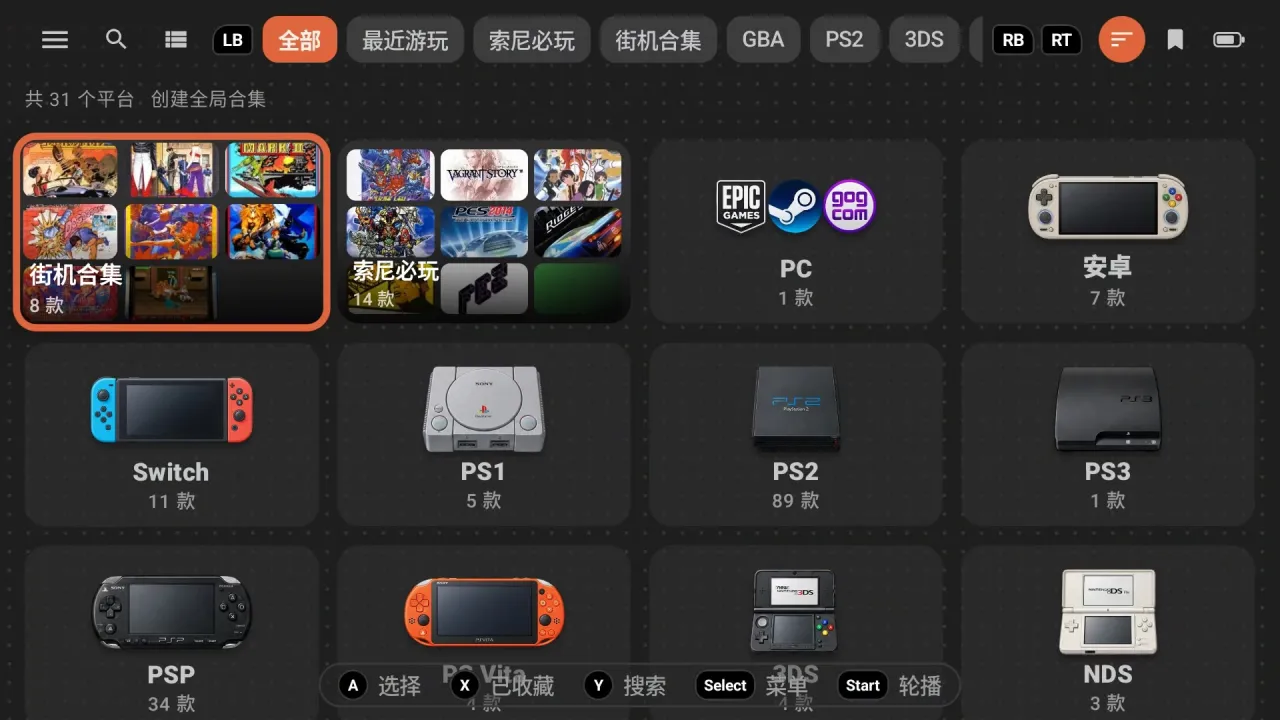
| All | The page that opens by default: your global collections at the top, then a large tile for each console; press A to enter that console. While searching, it lists every matching game. |
| Recently played | Appears once you've played a game, most recent first. |
| Global collections | Cross-console collections you make yourself, one tab each (see below). |
| Android | Appears once you turn on Settings → Interface → Android games (see below). |
| PC | Appears when there are PC games on the device. |
| Each console | Appears only when there are games for that console on the device, followed right away by its custom tabs. |
- LB / RB switch tabs.
- With more than 6 tabs, press RT (or tap RT at the right of the tab bar) to open Jump to, which lists every tab on one screen; pick one to go straight there. Press RT or B again to close it.
- Reordering: in Jump to, long-press a tab and drag it to its new place (a "Long-press and drag to reorder" hint sits in the top-right corner). Global collections move only within the top half, console and custom tabs within the bottom half, and All stays put. The order is saved on this device only.
- Each tab remembers the game you last selected and takes you back there when you return.
#Android tab
- Turn on Settings → Interface → Android games.
- Go to the Android tab, press Start or tap Choose apps, and tap apps in the list to add or remove them.
- The chosen apps show in a grid; press A to open one. The All page also gets an Android tile.
The Android tab has the grid layout only; here Start opens the app list.
#Layouts
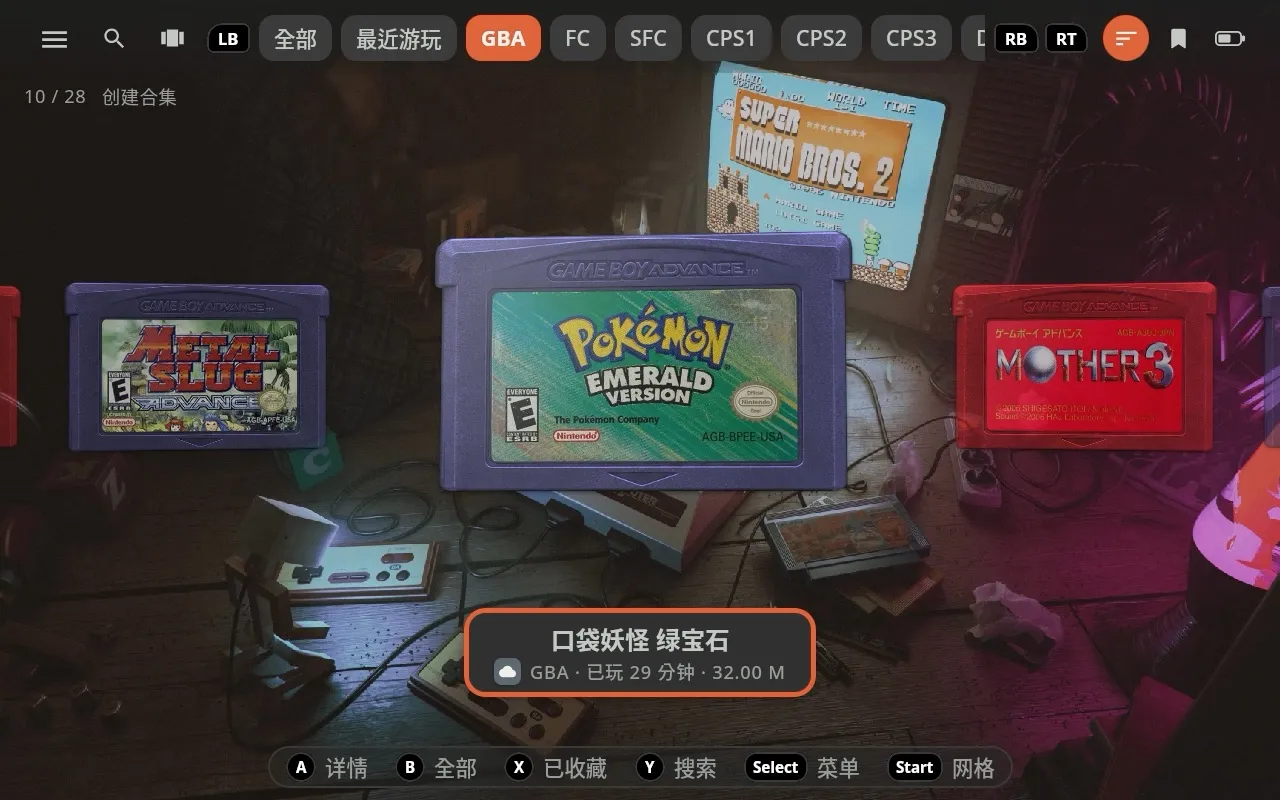
Press Start (or tap the layout button in the toolbar) to cycle through three layouts; the hint bar shows which one comes next:
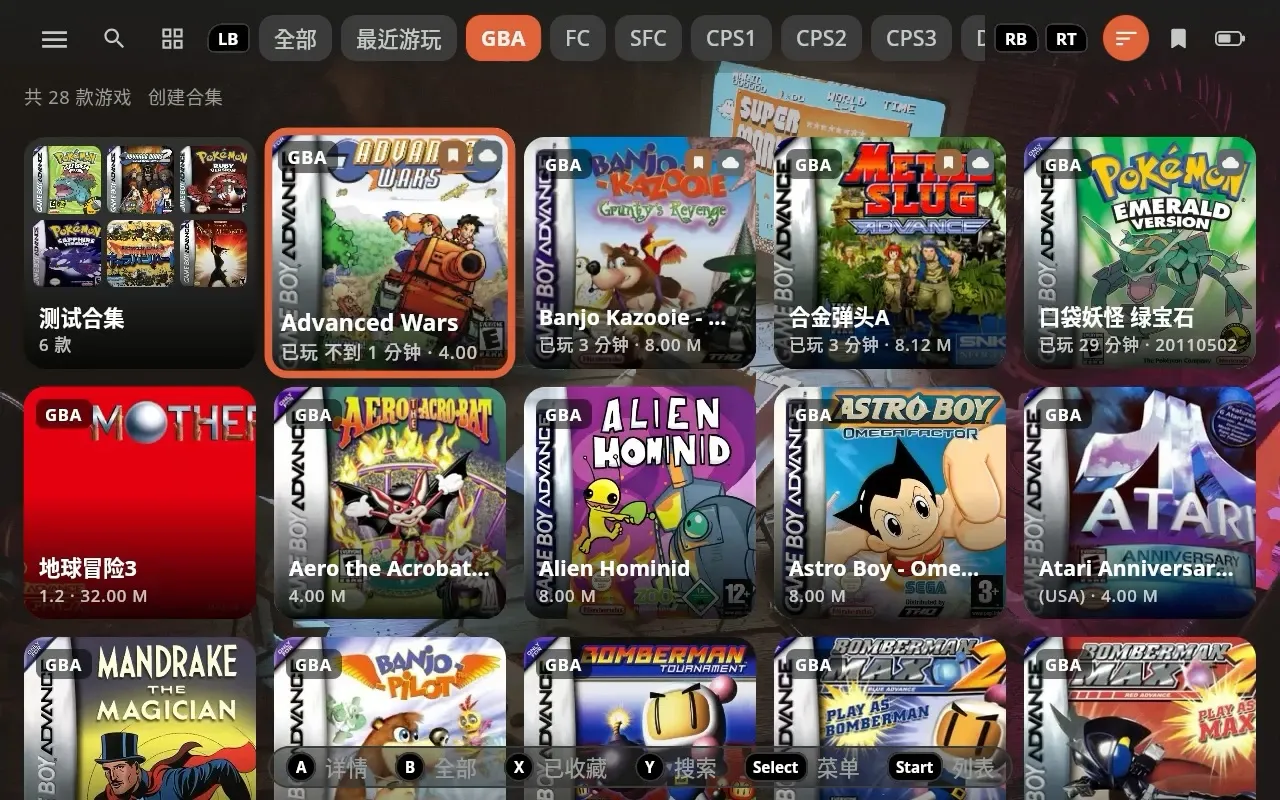
- Grid: box-art tiles.
- List: one game per row.
- Carousel: one large picture in the middle (cartridge, disc or UMD), with the neighboring games on either side. The middle cartridge slowly floats and turns; you can turn this off in Settings → Interface → 3D cartridge animation. In the carousel, the count line shows where you are, for example
2 / 35.
The All page's console tiles come in grid and carousel only.
#Game preview panel
With Settings → Interface → Game preview on, grid and list get a panel on the left showing the selected game's cartridge or box art, name, play time and description; when a collection is selected, its games are shown spread out.
- Scroll a long description with the right stick or by dragging with your finger.
- With game videos on, the video plays in the panel's picture spot.
- Games with no description show "No description found"; tap Look it up below it (an AI feature; see AI features).
- Off by default on narrower screens; each device remembers its own choice.
#Controller buttons
In Settings → General → Button layout, choose Xbox (the default, A at the bottom) or Nintendo (A on the right). The tables below use the Xbox layout. If your handheld's system already swaps A/B, choose Xbox here.
The hint bar at the bottom of the screen always shows the buttons you can use right now, and tapping a hint does the same thing. The hint bar tucks itself away when you touch the screen and comes back at the next button press.
#Library
| Button | Action |
|---|---|
| D-pad | Move the selection |
| A | Open the game page (details); on a console tile, enter that console |
| Hold A | Always open the game page; on a collection tile, open Edit / Ungroup |
| B | Close search; in another tab, go back to All; on All, open the menu; in an open collection, close it |
| X | Bookmarks only (Bookmarked / Show all) |
| Y | Open / close search |
| LB / RB | Switch tabs |
| RT | Jump to (with more than 6 tabs) |
| Start | Change layout |
| Select | Open / close the side menu (the same on every screen) |
| LT + A | Play the game straight away, without the game page |
| LT + B | Open the Customise panel (theme, background, tile shape, scale, grid columns) |
| LT + X | Global collections only on / off (when you have global collections) |
| LT + D-pad up / down | Page through grid and list |
| Right stick | Scroll the description in the game preview panel |
While you hold LT, the hint bar switches to these combos. Tap the battery icon in the top-right corner and the pop-up's "Secret combos" lists them too.
Tip Want A to start playing right away? Turn on Settings → Interface → A to Play: from then on A / a tap plays, and LT + A shows the details. A long press on a game always opens the details. When the game isn't on the device or no emulator can run it, the game page still opens.
#Game page
| Button | Action |
|---|---|
| A | Press the selected button (Play is selected when the page opens); on the cartridge / disc picture, open the large view |
| B | Back to the library, on this game |
| LB / RB | Previous / next game (in the library's current order) |
| X | Bookmark / unbookmark |
| Y | Choose an emulator |
#Touch
- Tap a game: open the game page (or play it, with "A to Play" on).
- Long-press a game: always open the game page.
- Long-press an empty spot in the list: open the Customise panel.
- On long grids and lists, a fast scroller appears on the right (see below).
#Search, bookmarks and sorting
#Search
Press Y or tap the search icon in the toolbar and type a game name. On the All page, search covers every console; in a console tab, only that console. Collections whose names match are listed too. Press Y again to close and clear the search.
Note Search uses the game's original name, not a name you gave it.
#Bookmarks
- On the game page, press X or tap ⋯ → Bookmark. Bookmarked games have an amber bookmark on a corner of their box art and always sort to the top of the list.
- In the library, press X or tap the bookmark icon in the toolbar to show bookmarked games only.
#Sorting
Tap the sort icon in the toolbar:
- Default order, Name A→Z, Name Z→A, Size: smallest first, Size: largest first, Recently played. Name sorting uses the shown name, with Chinese names sorted by pinyin.
- Downloaded first, Beaten last (on by default: games marked beaten go to the end) and Global collections only: these three are switches that apply on top of the chosen order.
Your sort choice is kept.
#Fast scroller
When a grid or list is more than 4 screens long, a thin slider appears on the right as you scroll. Drag it to jump around; a bubble beside it shows where you are: the first letter when sorted by name (the pinyin initial for Chinese), the size when sorted by size, the date when sorted by recently played, and the position number in the default order.
#Game page
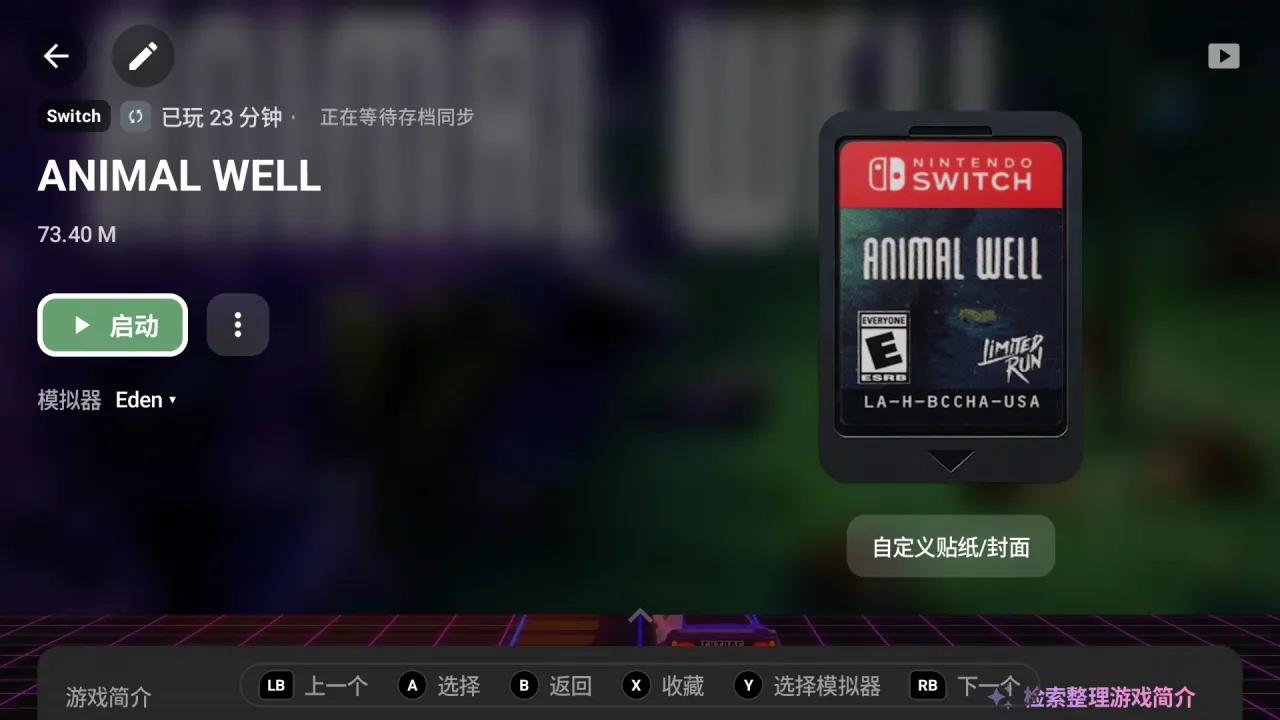
Press A or tap a game in the library to open its game page.
#Top
- Game name: shown in full; the ✎ next to Back in the top-left corner opens Edit game info.
- Cartridge / disc / UMD / arcade cabinet: games on the device show as the physical item; press A or tap it to see it large. The Customise button below it changes the look, label and box art; see Artwork and scraping.
- Button row: Play, Cheats (see Cheats), the floating button switch, and ⋯ at the end.
- Emulator: the emulator or core in use; tap it (or press Y) to change it. Games for Nintendo consoles also have a button layout switch beside it. See Playing games.
- The video button in the top-right corner: shown when "Game page video" is off in Settings → Interface → Game videos; tap it to play the video once.
#⋯ menu
| Item | Action |
|---|---|
| Bookmark / Unbookmark | Bookmark this game |
| Mark beaten / Unmark beaten | A beaten game gets a gold trophy mark |
| Scrape again | Fetch the box art and label again |
| Change wallpaper | Use a picture from your device as the game page background, for this game or for all games of this console |
| Save history / Upload local saves | For save sync; see Save sync |
| Steam page | PC games only |
| Delete game | Delete the game's files from the device |
#Cards below
- About: genre, year, publisher, developer and the description. A Pegasus pack's own Chinese description comes first, ScreenScraper's English one after it. The AI features can write a Chinese description (Look it up; see AI features).
- Game information: platform, edition, category, the collection it's in, and more.
- Size and Storage: opening the game page works out how much space this game really takes (This game uses).
#Play time and beaten games
- Games started from Tea are timed automatically, shown as "Played 3h 12m" in the grid, list, carousel and on the game page. Time the device spends asleep doesn't count.
- With save sync on, play time from your other devices is added in.
- Play records survive renaming the files or moving them into a custom tab.
#Edit game info
Tap the ✎ next to the game name. There are three tabs at the top; switch with LB / RB or by tapping:
| Tab | Contents |
|---|---|
| Name | Rename the game. After renaming, the original name shows below it; Restore name changes it back. |
| Edition | The small line under the game name (such as the translation group or version number). Leave it empty to show it automatically. |
| Description | Write your own description to replace the fetched one. Leave it empty to show the scraped or AI description. |
Each tab has AI buttons at its top right (Chinese / English / Both, Ask AI, Look it up), which need the AI features.
- Select a text box and press A or tap it to start typing; press B to stop.
- Save saves every tab you changed in one go; Cancel throws them all away. Restore name / Automatic reset only the current tab to its automatic content, taking effect when you tap Save.
- After you rename a game that's on the device, Tea asks Scrape again?: for games with a cartridge or disc, it opens the label search with the new name filled in; other games are scraped again under the new name straight away.
Renaming changes only what's shown and the sort by name; search still uses the original name.
#Delete a game
On the game page, tap ⋯ → Delete game. The confirmation lists the files that will be deleted from the device.
Note Saves kept inside the game folder are deleted too. Before deleting, you can upload your saves in Save sync.
#Collections
#Folder collections (automatic)
When a subfolder in a console folder holds several games (for example fc/热血系列/), Tea shows it as one collection tile instead of a game. Folders for Switch, Wii U, PS3, PS Vita, arcade and similar consoles are not split up.
- Press A to open a collection: the tab shows its games, with a path like
GBA › 热血系列at the top; press B to close it. - On the game page, LB / RB step through the games in the collection.
- Collections group games only in console tabs and custom tabs.
#Making and editing collections
- In a console tab, tap New collection next to the count line (or press up on the D-pad from the first row).
- On the picking page, press A to tick games, or tick a whole folder (games you put in that folder later join automatically). X opens a folder, Y searches the current folder, Start switches grid / list.
- Fill in the collection name and tap OK.
Hold A (or long-press) on a collection tile to Edit or Ungroup it. Once ungrouped, its games show on their own again; no files are deleted. A game can belong to only one collection in a tab.
#Global collections
A global collection can hold games from any console. Each global collection is a tab of its own, right after All.
- On the All page, tap New global collection next to the count line.
- The list of tabs is on the left (switch with LB / RB); tick games on the right. Pick all / Pick none select a whole tab at once.
- Once every game in a tab is ticked, you can tap Hide this tab to remove that console tab from the tab bar (it comes back by itself when you add new games).
- Fill in the name and tap OK.
In a global collection's tab, tap Edit collection on the count line to change it; Ungroup removes only this collection, leaving the games and files untouched.
With Global collections only on (in the sort menu, or LT + X), the tab bar keeps only All and your global collections, and the All page shows global collection tiles. In the carousel layout, a global collection shows as a ring of spinning box art.
#Look
#Customise panel
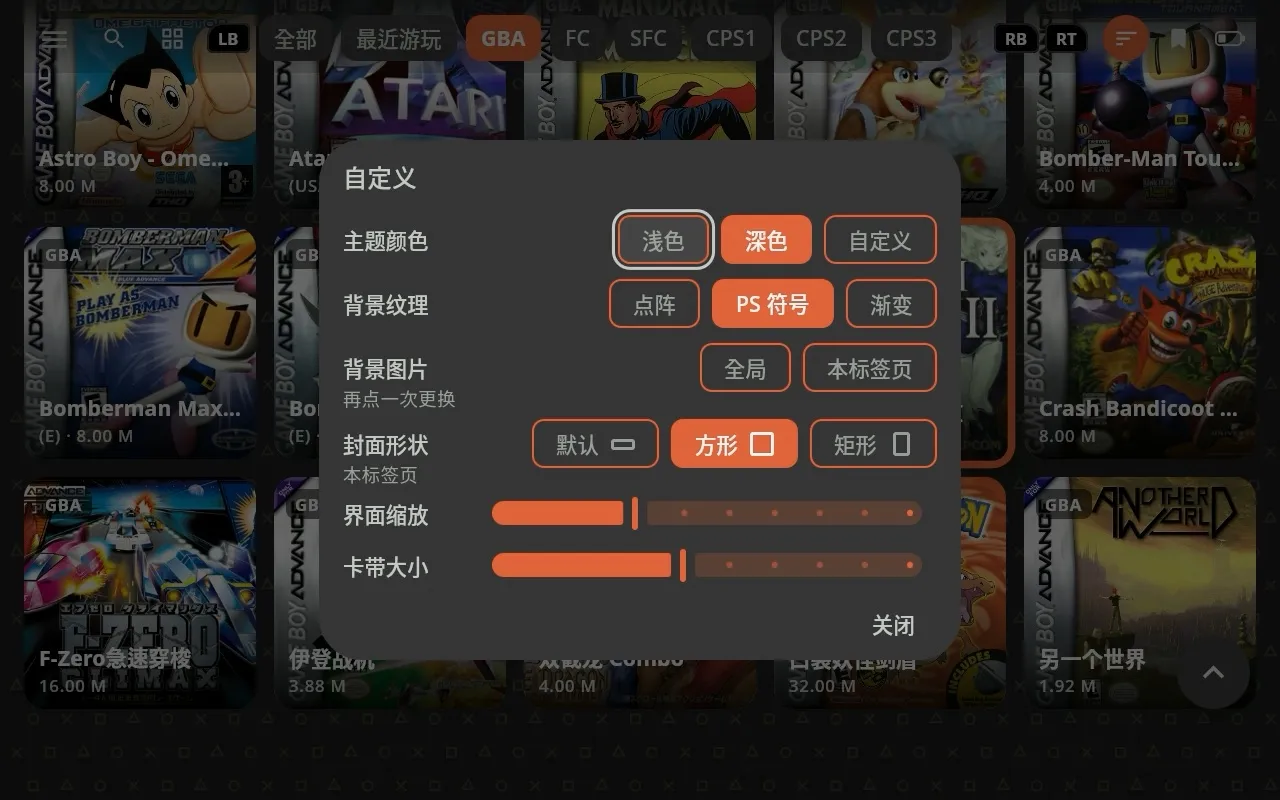
Long-press an empty spot in the library, or press LT + B, to open the Customise panel:
| Item | What it does |
|---|---|
| Theme colours | Light / Dark, or Customise to open the colour picker |
| Background texture | Dots / PS shapes / Gradient |
| Background picture | Everywhere or This tab: use a picture from your device as the background |
| Tile shape | Current tab only: Default (wide capsule) / Square / Rectangle (game box) |
| UI scale | Size of buttons and text |
| Cartridge size | Size of the carousel's cartridges; the panel turns see-through while you adjust it so you can see the result |
| Grid columns | Columns in the current tab: Auto, or 2–6 columns with − / + |
Tip Square suits consoles with square cartridges such as GB / GBA; Rectangle suits the others. Each tab can have its own.
#Settings → Interface
- Theme: Default / Dark / Follow system. Colours below it picks a palette for light and for dark, including a set of traditional Chinese colours; you can also tap + to make your own palette (a name plus four colours: page, card, text and accent), and long-press or press X to edit one you made.
- Background: Dots / Image / PS shapes / Gradient.
- UI sounds: sounds for taps, going back and switching tabs; the sound when a game starts isn't affected.
- Tile shape, Grid columns: the defaults for every tab without its own setting.
- Scale: UI scale and Cartridge size, for this device only.
- A to Play, Android games, Game preview, 3D cartridge animation, Game videos: see the sections on this page and Artwork and scraping.
#App icon
Settings → General → App icon switches between several teacup icons. On some handhelds the home screen shows the new icon only after a restart.
#On the Steam Deck
The Steam Deck edition's library is much the same as on Android, but without the Android tab, the PC tab, the app icon and the button layout settings. See Steam Deck.