
Cheats
Pick cheats on the game page for RetroArch and the standalone PSP, 3DS, GC/Wii, NDS, PS2 and Switch emulators, with AI translate and find.
#Open cheats
- Open the game page of a game that's on the device.
- Under Emulator, pick an emulator or core that supports cheats. In the choose window, the ones that do are marked Cheats.
- Tap the Cheats button next to the emulator.
For games with cheats turned on, the button shows how many are on in its top-right corner (9+ for more than 9).
#Supported emulators
| Console | Emulator | Setup needed |
|---|---|---|
| Multi-platform | Most cores in RetroArch and RetroArch G | Open RetroArch once first |
| PSP | PPSSPP | Choose its data folder the first time |
| 3DS | AzaharPlus | Choose its data folder the first time |
| GameCube / Wii | Dolphin, Dolphin MMJR2-VBI | Choose its data folder the first time |
| NDS | melonDS, WatermelonDS, DraStic | See the NDS section below |
| PS2 | ARMSX2, NetherSX2 | See the PS2 section below |
| Switch | Eden, Eden Nightly, STORM SWITCH | Allow access to Eden's folder the first time |
Lemon (Switch) has built-in cheats; just use them in Lemon.
#Picking cheats
When the window opens, Tea finds the game's cheat list by its name automatically; the source is shown at the top (such as "libretro cheats database" or "PS2 cheats database").
- Switches save straight away: flipping a switch saves it, and it takes effect when the game starts. The top shows how many are enabled.
- Filter cheats: type a keyword in the search box to filter the list.
- All off: turn off every code for this game at once.
- Confirm: close the window.
#Wrong match or nothing found
- Pick version: when a game has several versions (regions, updates), switch to another from the list.
- Find another game: enter a different English name under Game's English name and search again. Fan translations and renamed games often need this.
- Import a code file: use your own cheat file.
- Find cheats / Translate: see the AI section below.
Note: choose cheats that match your game's region and update version. Fan translations or modified versions may not be compatible; codes may not work or may cause problems in the game.
#RetroArch
- Open RetroArch once first so cheats can be written.
- Cheats are written to RetroArch's
cheats/<core>/<ROM name>.cht; any file you already had there is backed up first. - For PC Engine and WonderSwan only working codes are listed; you can Import RAM codes if you need them.
- To put everything back as it was: Utility → RetroArch card → Cheats → Reset. This restores the original files and settings and clears the cheat choices for all games.
- When you delete a game, its cheat file is cleaned up too.
#PPSSPP, AzaharPlus, Dolphin
The first time you open cheats, choose the emulator's data folder:
- Open the emulator once first so it creates its folders.
- In the cheats window tap Choose folder, and in the system file picker choose:
- PPSSPP: the
PPSSPPfolder, or thePSPfolder inside it. - AzaharPlus: the
Azaharfolder, or theUserfolder inside it. - Dolphin: choose "Dolphin Emulator" in the file picker's sidebar, then tap Use this folder.
- Dolphin MMJR2-VBI: the
mmjr2-vbifolder in internal storage; if Tea has all-files access it's used automatically and you don't need to choose it.
- PPSSPP: the
- Then pick cheats as usual; they take effect when the game starts.
In Utility, the Cheats row on these emulators' cards shows where cheats are currently written; you can Change or Reset it (resetting clears all cheat choices for that emulator).
#NDS: melonDS, WatermelonDS, DraStic
Tea prefers codes for the same region as your cartridge (Japanese codes for a Japanese game). The three emulators share the same choices.
DraStic: cheats you tick are active as soon as the game starts. The first time, turn on Enable cheats in DraStic's menu → Options.
melonDS / WatermelonDS: they don't accept cheats from other apps, so import them once:
- Tick the cheats you want in Tea. Tea collects the codes ticked for all games into
Download/melonDS-cheats.xml. - In melonDS, go to Settings → Cheats → Import cheats and choose that file.
- Tick the codes you want in the game's cheat menu.
Note: each melonDS import replaces all previously imported cheats, and imported codes start off. After changing your choices in Tea, import again and tick them again.
#PS2: ARMSX2, NetherSX2
Cheats come from tens of thousands of community codes, matched to your disc version automatically; several code sets for the same game are merged into one list.
ARMSX2:
- In ARMSX2's settings, set the data directory to a custom folder (Tea can't read its default location; the cheats window tells you).
- Tick codes in Tea.
- In a game, open ARMSX2's menu and turn on cheats (PNACH).
NetherSX2:
- The first time, tap Allow in the cheats window and choose NetherSX2's
Android/datafolder. - Tick codes in Tea.
- Turn on Enable Cheats in NetherSX2's settings.
The two emulators share the same choices.
#Switch: Eden
The cheat database is updated daily, with 60 fps, graphics enhancement codes and more.
- The first time, tap Allow in the cheats window, choose Eden in the file picker's sidebar, then tap Use this folder.
- Tick codes and they're active when the game starts; nothing to set in Eden.
About versions:
- Switch cheats only work for the matching game version (including updates). Tea reads your exact version from the game files or Eden's records and picks the right codes automatically; codes for the wrong version don't take effect and won't cause problems in the game.
- If it says "Version not confirmed", play the game once in Eden, then come back and open cheats.
- If the database has no codes for your version, the window says so.
- Turning everything off in Tea really turns it off in Eden too. Eden's add-ons list shows an item called "Freedeck", which you can also turn off there.
Tip: a few large games (such as Octopath Traveler II) show a hint: in Eden's game properties → CPU backend, choose Dynarmic; cheats only work after you do.
#AI: Translate and Find cheats
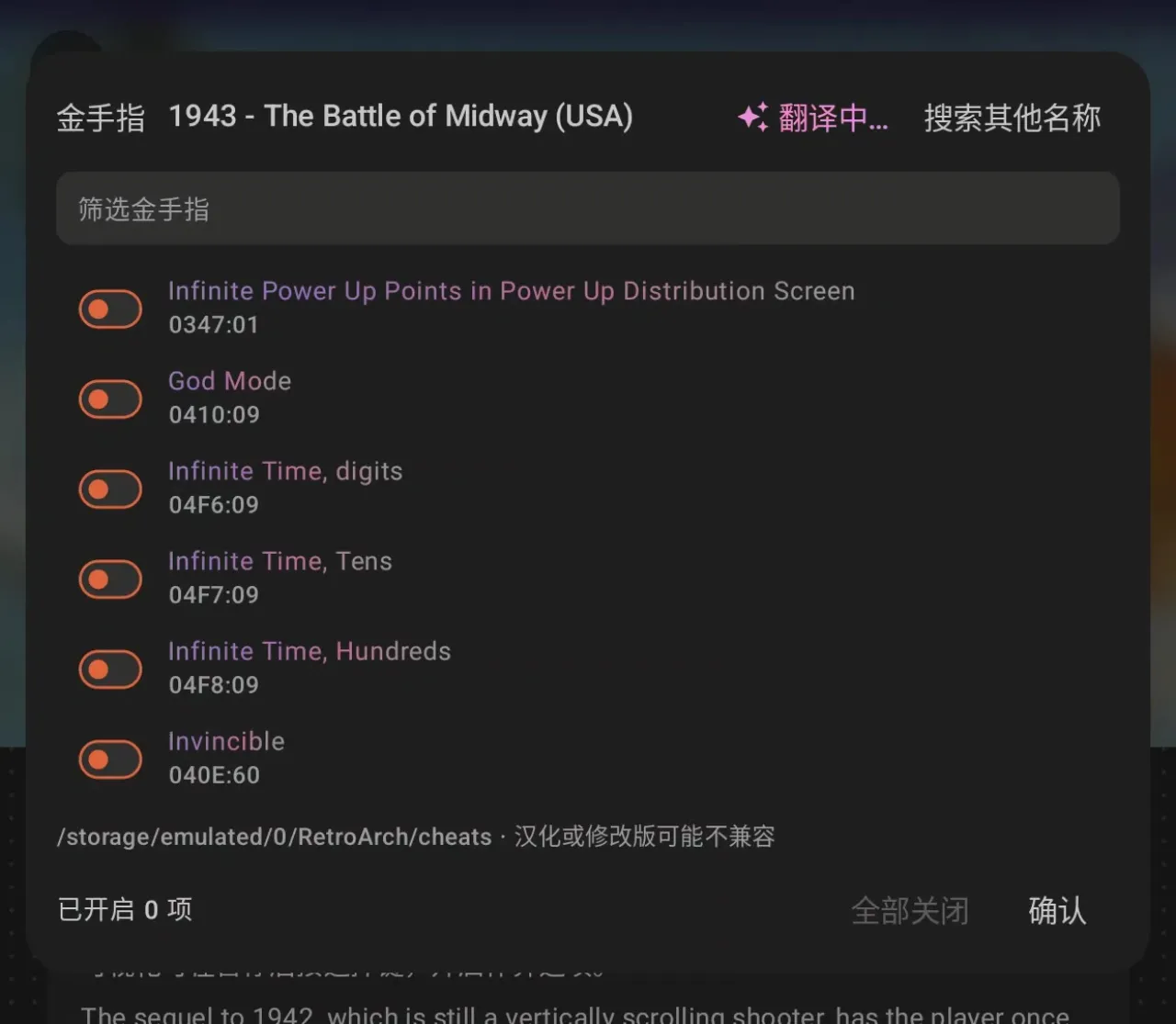
These are AI features, available once enabled; see AI features.
- Translate: translates English cheat names into Chinese in one tap, so "Infinite Time" or "Invincible" are clear at a glance. Switch with Show original / Show translation; filtering searches both Chinese and English. Only the display changes; the codes written for the emulator stay the same.
- Find cheats: when nothing is found by the game's name (for example a renamed fan translation), tap Find cheats in the empty results. The AI works out which English name the game probably has and searches the cheat database for it; if several turn up, you pick one.
#Steam Deck edition
On the Steam Deck edition, cheats for RetroArch, PPSSPP, Azahar and Dolphin work the same way; for melonDS, PCSX2 and Eden, ticked cheats are active with no import needed, and Tea turns on the cheat switch in the emulator for you. See Steam Deck.