Artwork and scraping
Where box art and labels come from, ScreenScraper accounts and quotas, cartridge looks, custom labels and box art, arcade cabinets, the launch animation and game videos.
Tea automatically finds box art, cartridge labels, descriptions and videos for the games on your device; this is called "scraping". Most of the time you don't have to do anything. This page explains how it works and how to swap in pictures you like better.
#Automatic scraping
#Where box art comes from
Once a game is in a ROM folder, Tea tries these in turn:
- By file: reads the ROM's checksum or the disc's serial number and looks it up exactly in libretro's game database. This finds the most matches.
- By name: translations and hacks have different checksums, so Tea matches the game's English name instead. Chinese names are first turned into the original English name.
- ScreenScraper: when the first two find nothing, Tea uses the box art ScreenScraper returns.
- Pictures on the device: when nothing else is found, Tea uses pictures already on the device: ES-DE's media folder, a Pegasus pack's images, an image with the same name next to the ROM, a
cover/folderimage in the game folder, or the game's own icon (PSP, PS Vita, PS3).
Only games on the device are scraped.
#Scraping progress
- While scraping, the library's count line shows "Scraping 12/340", and a faint light sweeps across the tab of the console being scraped.
- The game you're looking at is scraped first.
- Scraping runs only while Tea is open, and pauses by itself when you switch to an emulator to play, so it never slows your game down.
- Tap Pause 1 hour next to the progress to pause background scraping; it resumes by itself an hour later. While paused it shows "Scraping paused until HH:mm"; tap Resume to carry on right away.
#Scraping again
- Wrong box art: on the game page, ⋯ → Scrape again.
- No box art: when the game page shows "No cover", tap Scrape again.
- Box art from the wrong game: the surest fix is to search and pick by hand in Label / cover (see below).
Box art and labels are saved on the device once seen, so they show offline afterwards too.
#Labels and ScreenScraper
#Cartridges, discs and UMDs
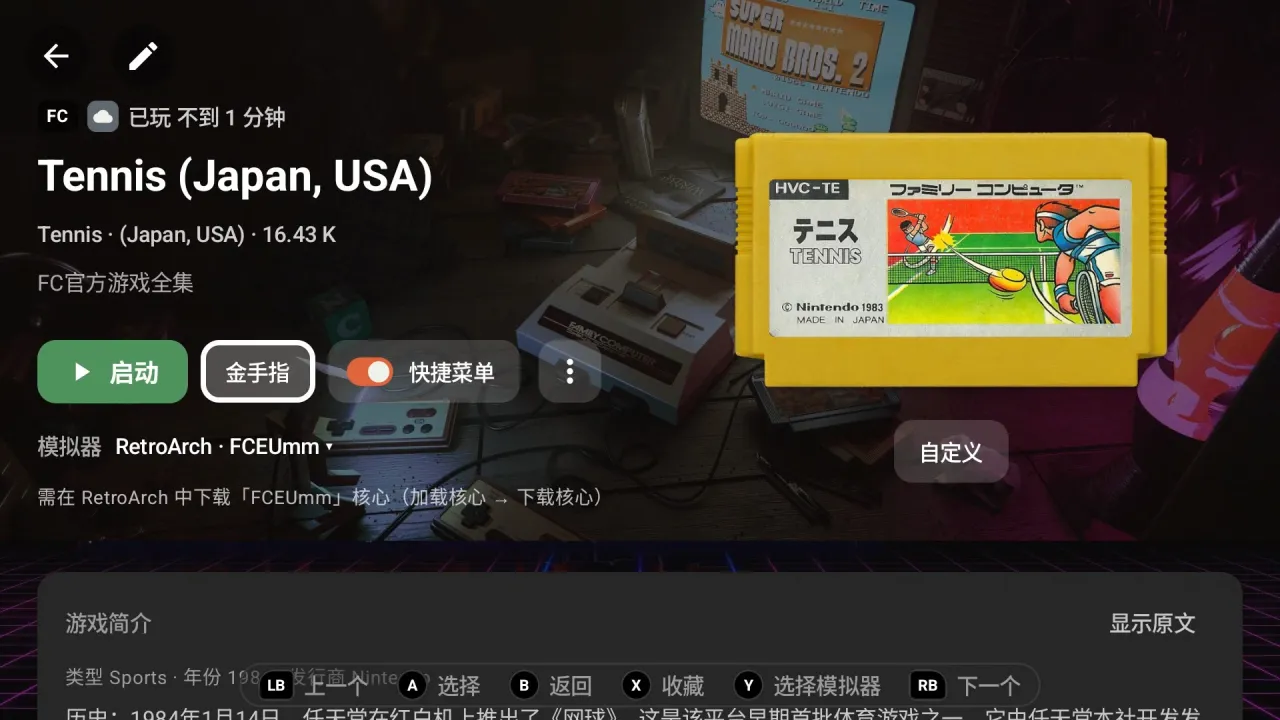
Games on the device show as the physical item in the carousel and on the game page, with the artwork printed on it:
| Look | Consoles |
|---|---|
| Cartridge | FC / NES, SFC / SNES, MD, GB, GBC, GBA, N64, NDS, 3DS, Switch, Game Gear, NGP, WonderSwan, Lynx; HuCard for PC Engine |
| Disc | PS1, PS2, PS3, Saturn, DC, Wii, Wii U, Mega-CD, 3DO; mini disc for GameCube |
| UMD | PSP |
| Arcade cabinet | NEOGEO, CPS1 / 2 / 3, FBNeo arcade, Naomi (see below) |
Cartridge labels and disc faces use ScreenScraper's scans of the real thing first; without a scan, the box art is cropped and applied instead.
#Scrape labels switch
If you'd rather not use ScreenScraper's scans, turn off Settings → Emulator games → Scrape labels. With it off, no new labels are scraped and games without a label show their box art in the cartridge and disc views; labels already scraped are kept, and box art is scraped as usual.
#ScreenScraper account
Labels, descriptions and some videos come from ScreenScraper (screenscraper.fr). It works without logging in (using the built-in account). Log in to your own account in Settings → Emulator games → ScreenScraper account and:
- scraping is faster, with higher priority when the site is busy and no throttling for non-members;
- requests count against your own account's daily quota.
To log in:
- No account yet? Tap Sign up to register on the ScreenScraper website.
- Tap Log in and fill in your User name and Password.
- Once logged in, it shows "Logged in:" and your masked account; Log out logs out at any time.
The card shows "Used today: X / Y" below.
Note When the day's quota runs out, a message on screen says the quota is used up and scraping carries on tomorrow. Games that didn't get a label today get one automatically the first time you open Tea the next day.
#Prefer frontend artwork
With Settings → Emulator games → Prefer frontend artwork (ES-DE / Pegasus) on, grid and list show pictures already on the device first: ES-DE's or a Pegasus pack's (ES-DE's when there are both), and pictures next to the ROM. The cartridge and disc views aren't affected: labels still come from ScreenScraper first, and use these pictures only when there's none.
Tea looks for ES-DE's ES-DE/downloaded_media folder on internal storage and SD cards, including any custom media location you set in ES-DE.
#Cartridge looks
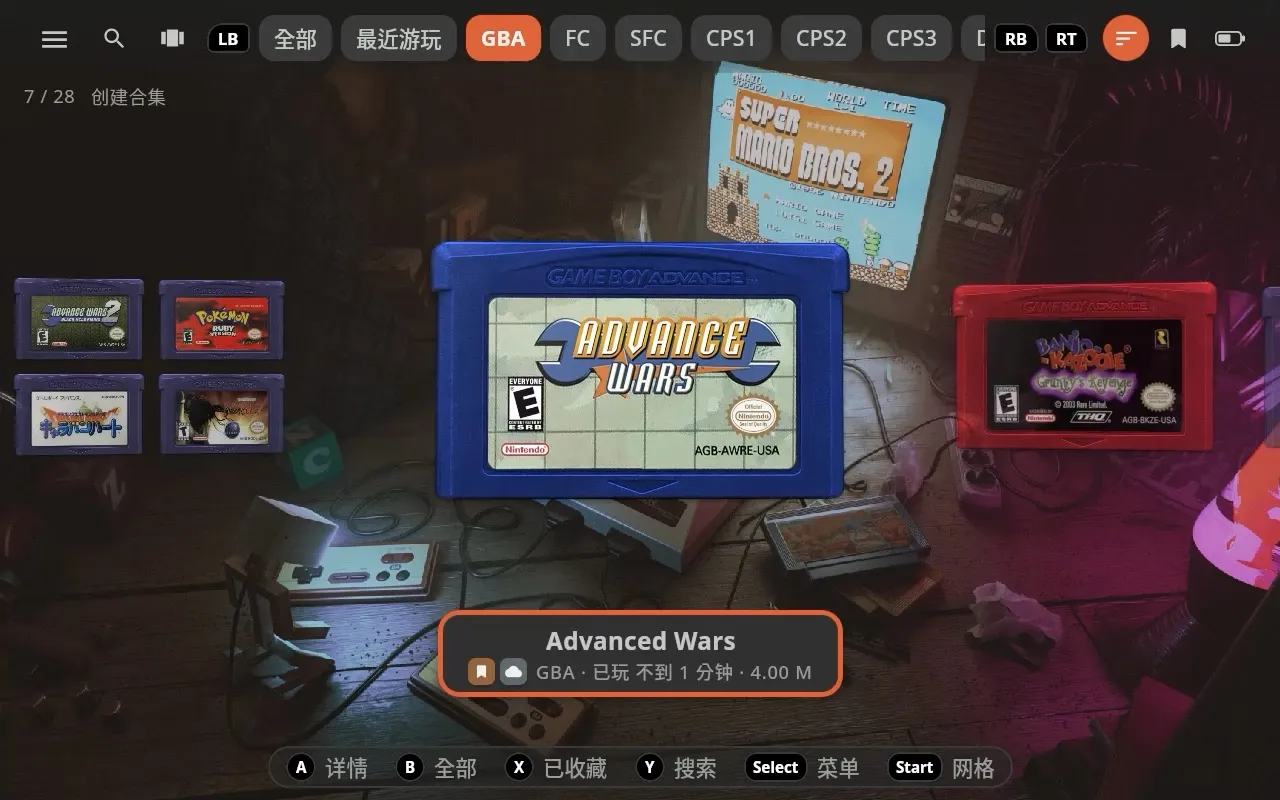
Some consoles' cartridges come in several looks. On the game page, tap Customise below the cartridge:
- Pick a look and the cartridge changes right away (on the game page, in the carousel and in the launch animation).
- To use this look for all of this console's games, tap Apply to all.
- Tap Done to close.
| Console | Looks |
|---|---|
| FC / NES | NES (US), Famicom (Japan), Subor |
| SFC / SNES | SNES (US), Super Famicom (Japan) |
| MD | Genesis black / grey / beige / blue, Mega Drive black / grey / beige / clear blue |
| GB | Grey, black, red, blue, yellow, green, white |
| GBC | Clear smoke, clear gold, clear silver, clear crystal blue, atomic purple, plus all the GB colours |
| GBA | Indigo, dark grey, black, red, blue, green |
| NDS | Black, ivory |
| NGP | Black, orange, grey |
| Game Gear | Black, clear black |
The default look for FC / SFC and NES / SNES depends on the game's version: Japanese releases and Chinese translations use the Famicom / Super Famicom cartridge with the Japanese label; US and European releases use the NES / SNES cartridge.
#Custom labels and box art
You can give every game pictures you choose yourself. Depending on the game, the button below the picture on the game page says Customise (cartridges with several looks: tap Label / cover in the pop-up), Label / cover (other cartridges, discs, UMDs) or Custom cover (other games).
It opens a full-screen page with two tabs, Label and Cover:
| Button | Action |
|---|---|
| LB / RB | Switch tabs |
| Y | Jump to the search box |
| B or ✕ | Close |
#Label tab
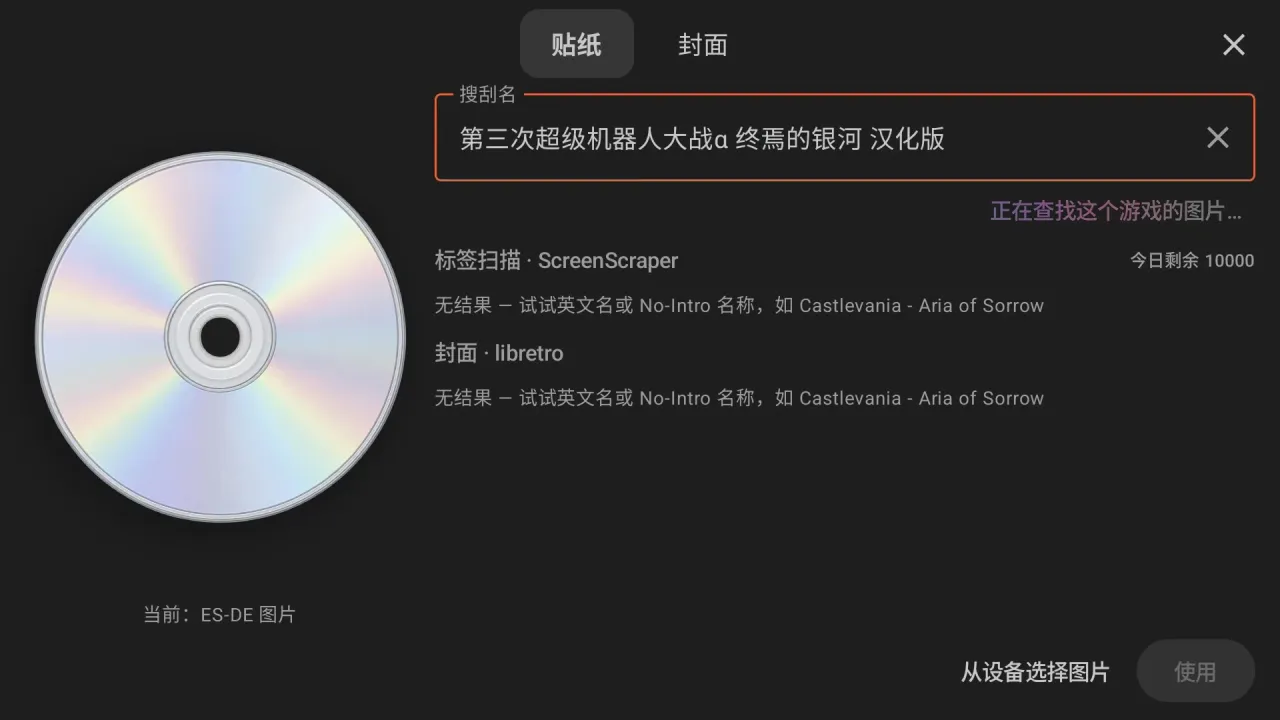
- Scrape name is filled in with the English name Tea recognized; you can change it to another name (type at least 3 letters).
- Two groups of results are listed below: Label scans · ScreenScraper (scans of the real thing, with today's remaining requests shown beside it) and Box art · libretro (uses no requests).
- Select a result and the cartridge or disc on the left previews it; tap Use.
- You can also tap Image on device to use a picture of your own as the label; tap Use once the preview looks right. JPG, PNG, WebP, GIF, BMP, HEIC and other formats work.
- Once set, Reset label deletes the custom label and scrape name and goes back to automatic scraping.
- A result you pick by hand isn't overwritten by later automatic scraping; the saved scrape name is also used to find box art and videos afterwards.
#Cover tab
- The left side shows the current box art and where it came from (custom cover / picked by hand / found automatically).
- Type an English name in the search box to list box art from ScreenScraper and libretro; PC games also get Steam store art.
- Select one and tap Use, or tap Image on device. Once set, you can tap Reset cover.
A custom cover beats every other box art, in the grid, list, carousel and on the game page.
Tip Don't know the game's English name? Find art looks up the game's official name and searches with it for you. It's an AI feature; see AI features.
Custom labels and custom covers travel to your other devices with Drive sync.
#Adding labels in bulk
To give many games new labels at once, drop image files straight into this folder:
Freedeck/artwork/stickers/<主机>/<ROM 文件名>.png
For example, Roms/gba/Pokemon Emerald.gba matches Freedeck/artwork/stickers/gba/Pokemon Emerald.png; jpg, jpeg and webp work too. <主机> (console) is Tea's own console code, which isn't always the same as the ROM folder name: for example gba, psp, nds; FC is fc (not nes), PS1 is ps1 (not psx). Games in a custom tab use the code of the console the tab belongs to. <ROM 文件名> is the ROM file name.
The order is: a label picked by hand on the game page → a label in this folder → ScreenScraper's scan → pictures on the device. This folder isn't synced through your drive; copy it to each device yourself.
#Arcade cabinets
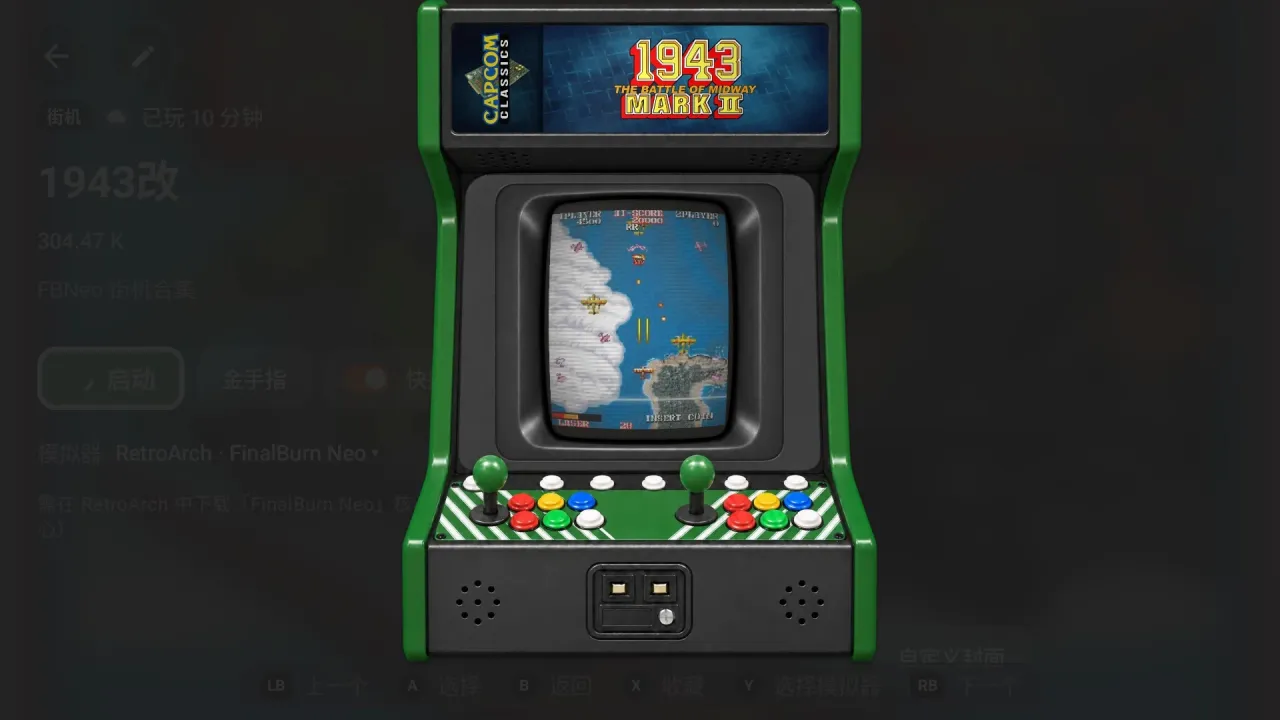
Arcade games (NEOGEO, CPS1 / 2 / 3, FBNeo, Naomi) show as a small arcade cabinet in the carousel, on the game page and in the launch animation: the light box at the top carries the game's marquee, and the screen shows the game.
- The screen and marquee come from ScreenScraper and libretro, matched by the arcade file name (such as
kof98.zip); a Pegasus pack's own screenshots, logos and video frames fill in anything missing. - Vertical arcade games (such as 1943 or Raiden) switch to a green vertical cabinet automatically.
- Wrong orientation? On the game page, tap Customise below the cabinet and choose Horizontal or Vertical (the detected one is marked "(detected)"); each game remembers its own. Custom cover is also reachable from here.
#Large view
On the game page, press A or tap the cartridge, disc, UMD, box art or arcade cabinet to open a full-screen view:
- Sticker / Cover tabs at the top (Screen / Cover for arcade games); switch with LB / RB.
- Pinch to zoom (up to 8×) and drag to look around; with a controller, zoom with − / + and tap the percentage to reset.
- Tea loads the original image, showing the current one while it loads; if it fails, tap Retry original.
- Press B or tap × in the top-right corner to close.
#Launch animation
When you tap Play on the game page, the cartridge, disc or UMD flies to the middle of the screen and then slides into the bottom of the screen as if going into the console: a cartridge clicks into its slot, a disc starts spinning, an arcade cabinet's screen flashes a scan line and takes a coin, and finally the picture closes in an iris into the game. When you quit the game and return to Tea, the iris opens again from the slot.
The focused cartridge in the carousel slowly floats and turns; you can turn this off in Settings → Interface → 3D cartridge animation. The launch animation's sounds aren't affected by the "UI sounds" switch. More about launching in Playing games.
#Game videos
Rest on a game in the library for a moment and its video plays in the background (in the preview panel when game preview is on). Press any button or touch the screen and the video stops at once.
#Where videos come from
- Videos in ES-DE's media folder.
- Videos that come with a Pegasus pack.
- ScreenScraper's online videos (only for games on the device, looked up once box art scraping is done).
- The XMB background animation on a PSP game's disc (as the last resort).
#Settings
In Settings → Interface → Game videos:
| Option | What it does |
|---|---|
| Game videos | Main switch: play background videos when a game is focused |
| Game page video | Play once (muted) when the game page opens. With it off, games with a video show a video button in the game page's top-right corner; tap it to play |
| Delay | Wait 1 / 2 / 3 seconds after selecting a game before playing |
| Loop | Play again when it ends |
| Sound | Muted by default |
| Save streamed videos | Save videos played online into ES-DE's media folder (ES-DE/downloaded_media/<主机>/videos/, <主机> being the console) so they play locally next time, and ES-DE can use them too |
Tip After you change a game's scrape name, online videos Tea saved for it earlier are deleted and looked up again, so you don't keep seeing a video of the wrong game. ES-DE's or a pack's own videos are never deleted.
#Steam Deck edition
Scraping, labels, custom covers, arcade cabinets, the launch animation and game videos work the same in the Steam Deck edition as on Android. See Steam Deck.